
Steps
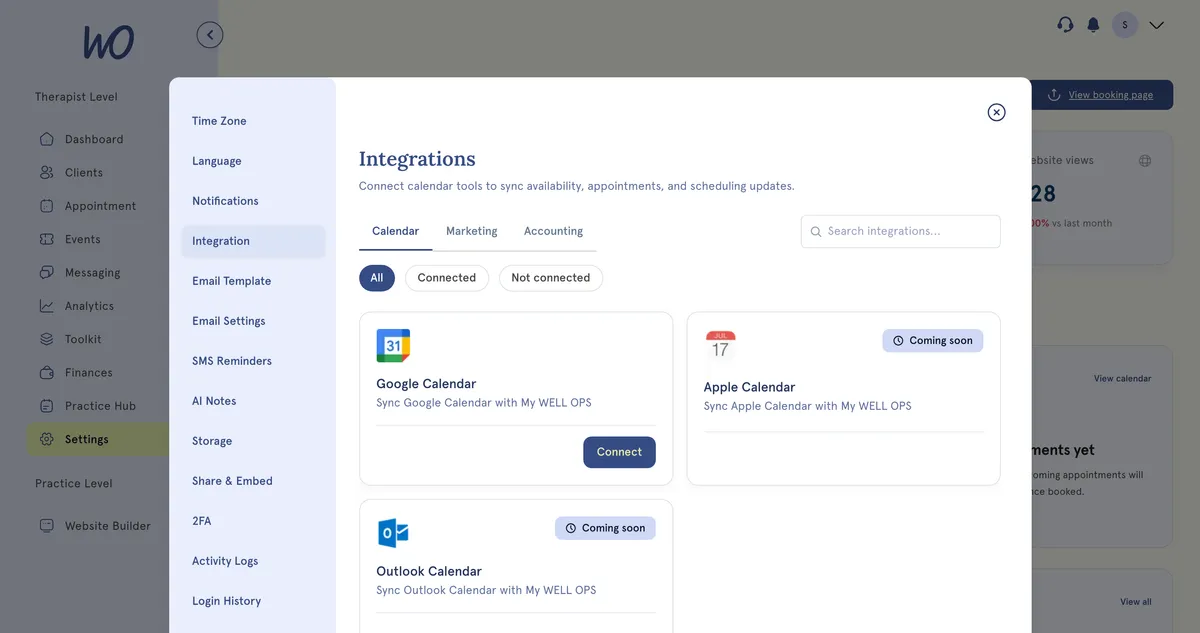
- In the sidebar, select Settings.
- Select Integration. It opens on the Calendar tab.
- Switch between Calendar, Messaging, Marketing and Accounting to see each group.
- To find one quickly, type in Search integrations…, or choose Connected or Not connected. Both work within the tab you’re on.
- Select Connect on a card to set it up, or Manage on one you’ve already connected.
Available now
- Google Calendar (Calendar tab) — your Google events show in MyWellOps, and your appointments appear in Google as busy time. See Connect your Google Calendar.
- Stripe (Accounting tab) — let clients pay online by card. See Connect Stripe so clients can pay online.
- Xero, Sage Accounting, FreeAgent and Zoho Books (Accounting tab) — invoices and payments you record in MyWellOps are copied into your accounting software.
Messaging
The Messaging tab has WhatsApp Business, Instagram and Facebook Messenger. Once connected, their messages come into Messaging. A card that isn’t available for your account yet shows Coming soon. In Messaging, Connect and Manage channels bring you to this tab.
Coming soon
These cards are marked Coming soon and have no button yet:
- Calendar: Apple Calendar, Outlook Calendar
- Marketing: Google Tag Manager, Google Analytics, Facebook Pixel, Google Ads, Mailchimp
- Accounting: Sumup
Good to know
- Text reminders aren’t an integration. Set them up in Settings → SMS Reminders — see Set up SMS reminders.
- Disconnecting an integration only removes its link to MyWellOps. Your Google or Stripe account stays as it is.
Troubleshooting
A card has no Connect button. It’s coming soon and can’t be set up yet.
I can’t find an integration. Search only covers the tab you’re on. Try the other tabs, and set the filter back to All.