
Before you start
- Exports download as CSV files. You can open them in Excel, Numbers or Google Sheets.
- Each export only includes what the list is showing. To export everything, clear any searches and filters first.
Steps
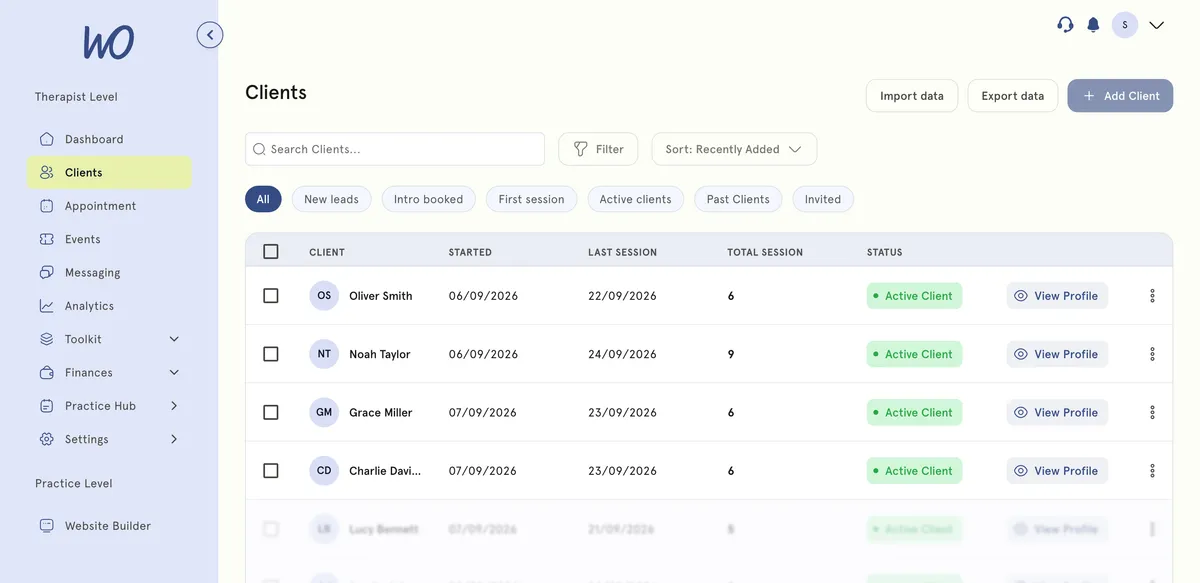
Export your client list
- In the sidebar, select Clients.
- Select Export data.
Export your appointments
- In the sidebar, select Appointment.
- Select Export date.
Export your transactions
- In the sidebar, select Finances, then Transactions.
- Select Export data.
What happens next
A CSV file downloads straight away. Its name includes the list and today’s date, for example clients_export_2026-09-13.csv.
- Client files have Client Name, Start Date, Platform, Status, Last Session and Total Sessions.
- Appointment files have Client Name, Date, Time, Platform and Status.
- Transaction files have the columns you currently have switched on in the table.
Good to know
- These exports are lists only. They don’t include session notes, documents or files.
- There’s no option in the app to close or delete your account.
- To cancel your plan, sign in and go to Settings → Subscription. Cancelling needs 30 days’ notice. If you have questions about charges or refunds, contact our support team and we’ll help.
Troubleshooting
My export is missing clients or appointments. The export only includes what the list is showing. If a filter such as Upcoming or a search is active, clear it and export again.
The file looks messy when I open it. That’s usually your spreadsheet app guessing the format. In Google Sheets, use File → Import → Upload and it lays the columns out for you.
Can I export my session notes? No. Exports are lists only. Session notes, documents and files aren’t included.